When you connect a Commonwealth Bank (CBA) bank or credit card account to MYOB, information from that account is sent by CBA straight into your MYOB business. These bank feeds save time on your data entry. Tell me more about bank feeds.
To connect your CBA account to MYOB, you need to be the online owner (this is usually the person who set up your MYOB subscription) or an Online Admin user. If you're connecting a credit card account, it must be a business credit card, not a personal one. Which CBA accounts are supported?
You'll start the application process in MYOB, then finish via NetBank (CBA's online banking). This is recommended as the fastest way to get set up. If you can't apply via NetBank you can can submit an application form instead.
There are two parts to connecting your account:
1. Apply Start the application process in MYOB, then finish via NetBank (the Commonwealth Bank's online banking). Alternatively, you can submit an application form. | 2. Link Once your application is approved, choose the MYOB category the bank feed applies to. |
Need to connect additional bank accounts?
The number of bank accounts you can connect to MYOB depends on your plan. Sign into My Account > Manage my product to see your current limit or upgrade your plan.
What will prevent me from applying via NetBank?
You won't be able to apply via NetBank if:
you don't have access to NetBank - speak to the CBA about getting set up.
you use CBA CommBiz
there's more than one signatory on your CBA account, or
you've chosen to "mask" your CBA account numbers in NetBank (so they display as XXX XXX) and you don't want to turn this off.
If you can't apply via NetBank, you'll need to use an application form instead—see below for details.
1. Connect your CBA account
OK, let's get started!
To connect your CBA account
In MYOB, go to the Banking menu and choose Banking hub.
Click Connect bank or credit card.
Select the type of account you're connecting (Bank account or Credit card account).
Choose Commonwealth Bank of Australia (CBA) from the list of financial institutions.

Select the Application method.

Online via bank / internet banking (recommended)
Read the displayed information and, if you agree, select the option I confirm that.
Click Next.
Take note of the displayed code or click Copy to copy it to your Windows clipboard. You'll need this code in NetBank to complete the application.
Click Go to online banking.
Log in to NetBank.
Select the account you want to connect to MYOB.
Select the terms and conditions checkbox.
Click Confirm to submit your application.
Application form
It can take 1 - 2 weeks for your application form to be processed by CBA.
Enter the bank account or credit card details.
Avoid rejected applications
Check that you've completed the authority form and that you've entered your bank info in the correct format.
Read the displayed information and, if you agree, select the option I confirm that.
Click Next.
On the Sign the authority form page:
Click Print authority form, then complete, sign and scan the form to your computer.
Click Upload authority form to open the secure upload portal.
Enter your Email address.
Upload your scanned application form (either drag and drop the form onto the page or click Browse for files to choose the file from your computer).
Click Submit Application.
How long will it take to approve my application?
NetBank applications are usually processed by the CBA within 24 hours, but it can take a couple of days. Uploaded application forms can take 1 - 2 weeks to be processed. If you haven't heard from us after this time, contact us.
We'll send you an email when your application has been approved, or you can track the status.
Once it's ready, you need to link the bank feed to the corresponding category in MYOB—see the next task for details.
2. Link the bank feed to a category in MYOB
Once you've been notified (by email) that your application has been approved and the first bank feed has arrived, you'll need to link the bank feed to the corresponding category in MYOB. This will be the category in MYOB that your bank transactions will be fed into.
To link a category to the bank feed
In MYOB, go to the Banking menu and choose Banking hub. The Banking hub opens, listing all the bank feeds you have set up and their status. A bank feed that's ready to use will have a message prompting you to assign a category:

Click Add a category.
In the Add a category for an account page, choose a category from the Linked category list. This will be the category that the bank feed transactions will be fed into. You can only choose categories set up as a bank account or credit card. Learn more about categories.
Click Add to finish.

What happens next?
Your bank transactions will automatically be fed into MYOB at the frequency specified by the CBA for your account type.
You can then categorise those transactions or match them to existing transactions. You can even set up rules to make it happen automatically. Find out all about Working with bank transactions.
The first bank feed you receive will have transactions dated from when your bank feed was approved. Any transactions that occurred while you were waiting for the bank feed to be set up won’t be included, but you can import these transactions from your bank statements.
To set up a bank feed for a Commonwealth Bank account:
you need to be the online owner (this is usually the person who set up your AccountRight subscription) or an online administrator, and
have your MYOB account details handy.
Your AccountRight company file doesn't need to be online to set up bank feeds, but you'll need an internet connection. Which CBA accounts are supported?
If you're setting up a bank feed for a credit card account, it must be a business credit card, not a personal one. Which CBA accounts are supported?
There are two parts to setting up a bank feed:
1. Apply Start the application process in AccountRight, then finish via NetBank (the Commonwealth Bank's online banking). Alternatively, you can submit an application form. | 2. Link Once your bank feed application is approved, choose the AccountRight account the bank feed applies to. |
1. Apply for a bank feed
Applying online via NetBank is the quickest way to get up and running. Otherwise you can complete an application form.
The quickest way to apply for a bank feed is to start the process in AccountRight, then finish it via NetBank, the Commonwealth Bank's online banking.
You won't be able to apply via NetBank if:
you don't have access to NetBank - speak to the Commonwealth Bank about getting set up.
you use Commonwealth Bank CommBiz
there's more than one signatory on your account, or
you've chosen to "mask" your account numbers in NetBank (so they display as XXX XXX) and you don't want to turn this off.
If you can't apply via NetBank, use an application form instead. See the next task for instructions.
To apply for a bank feed via NetBank (Recommended)
Start AccountRight.
Go to the Banking command centre and click Bank Feeds.
If it's your first bank feed
The Manage Bank Accounts window appears.
Click Connect your bank account.
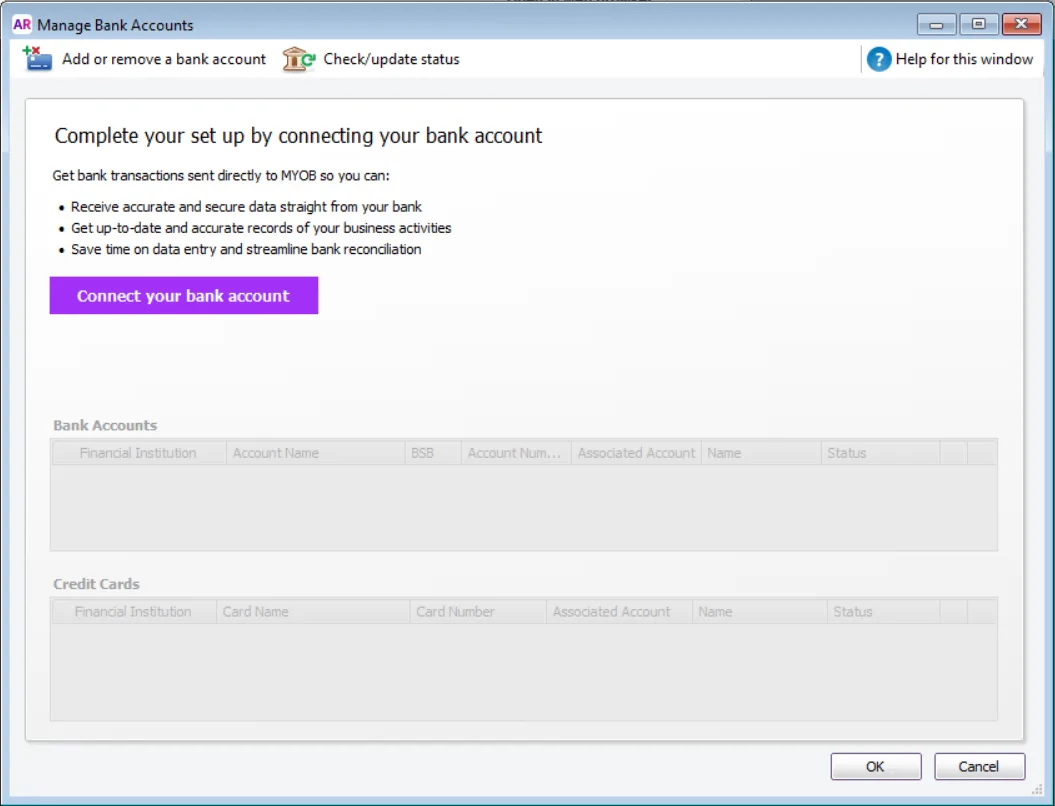
A web browser opens and you'll be prompted to sign in with your MYOB account details. You'll then see the Banking hub in the web browser version of AccountRight.
If you don't see the Banking hub, it means your AccountRight company file is not online. To set up a BNZ bank feed, you'll need to put your company file online.
If it's an additional bank feed
The Bank Feeds window appears. Click Manage Bank Accounts.

Click Add or remove a bank account.
A web browser opens and you'll be prompted to sign in with your MYOB account details. If you have multiple MYOB products or company files, select the applicable product and company file. You'll then see the Banking hub page in the web browser version of AccountRight.
If you don't see the Banking hub, it means your AccountRight company file is not online. To set up a BNZ bank feed, you'll need to put your company file online.
Click Connect bank or credit card.
Select Commonwealth Bank of Australia (CBA) from the list of financial institutions.
For the Set up method, select Online banking.
Read the displayed information and, if you agree, select the option I confirm that.
Click Next.
Click Copy to copy an 8-digit code you may need to log in to CBA internet banking.
Click Go to online banking and then log in to NetBank.
Select the account you want to receive bank feeds for.
Select the terms and conditions checkbox.
Click Confirm to submit your application.


Applications are usually processed by the CBA within 24 hours, but it can take a few days—we'll let you know when it's ready. To check the application status, see Tracking the status of your bank feeds application.
If you haven't heard from us after 5 business days, contact us.
Once it's ready, you'll need to link the bank feed to the corresponding account in AccountRight. See task 2 below for instructions.
To apply with an application form
If you can't apply for a bank feed via NetBank (the Commonwealth Bank's online banking), here's how to apply using an application form.
Start AccountRight.
Go to the Banking command centre and click Bank Feeds.
If it's your first bank feed
The Manage Bank Accounts window appears. Click Get Started with Bank Feeds.
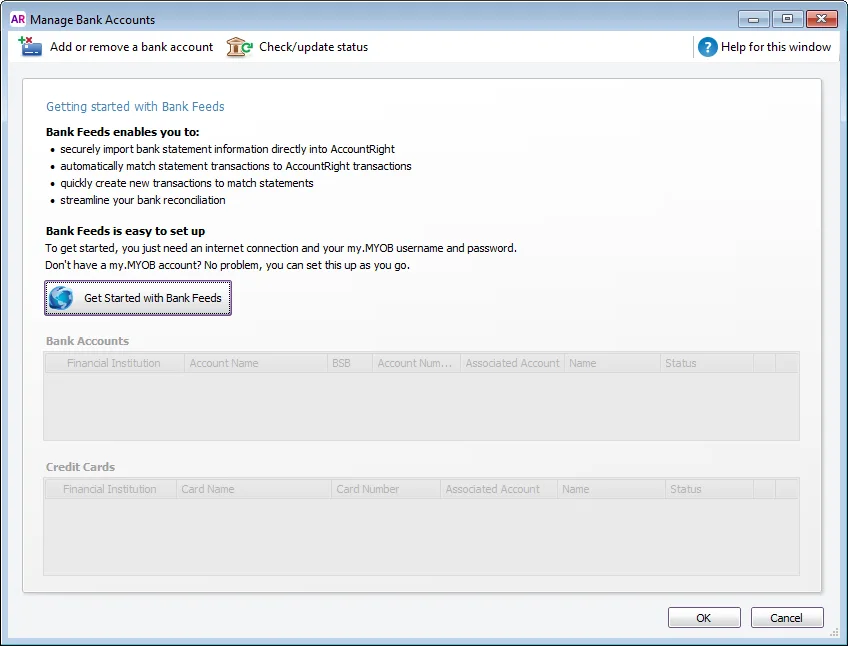
A web browser opens and you'll be prompted to sign in with your MYOB account details. If you have multiple MYOB products or company files, select the applicable product and company file. You'll then see the Banking hub page in the web browser version of AccountRight.
If you don't see the Banking hub, it means your AccountRight company file is not online. To set up a BNZ bank feed, you'll need to put your company file online.
If it's an additional bank feed
The Bank Feeds window appears. Click Manage Bank Accounts.
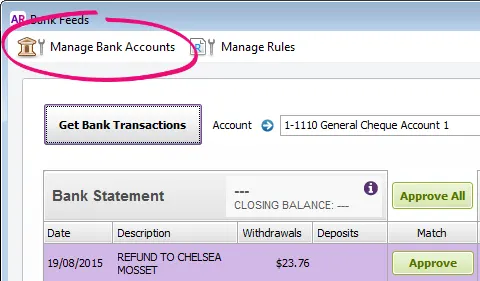
Click Add or remove a bank account.
A web browser opens and you'll be prompted to sign in with your MYOB account details. If you have multiple MYOB products or company files, select the applicable product and company file. You'll then see the Banking hub page in the web browser version of AccountRight.
If you don't see the Banking hub, it means your AccountRight company file is not online. To set up a BNZ bank feed, you'll need to put your company file online.
Click Connect bank or credit card.
Select Commonwealth Bank of Australia (CBA) from the list of financial institutions.
For the Set up method, select Form.
Complete your bank details.
Avoid rejected applications
Check that you've completed the authority form and that you've entered your bank info in the correct format.
Read the displayed information and, if you agree, select the option I confirm that.
Click Next.
On the Finish your set-up page:
Click Download authority form, then complete, sign and scan the form to your computer.
Click Upload authority form to open the secure upload portal.
Enter your Email address.
Upload your scanned application form (either drag and drop the form onto the page or click Upload and choose the file from your computer).
Click Submit Application.


Your application will be processed within 10 business days—we'll let you know when it's ready. To check the application status, see Tracking the status of your bank feeds application.
If you haven't heard from us after this time, contact us and we'll be happy to help.
Once it's ready, you need to link the bank feed to the corresponding account in AccountRight. See the instructions below.
2. Link the bank feed to an account in AccountRight
We’ll notify you by email when your bank feed is ready to use. You can then link the bank feed to the corresponding account in AccountRight.
To link an account to the bank feed
In your company file, go to the Banking command centre and click Bank Feeds. The Bank Feeds window appears.
Click Manage Bank Accounts. The Manage Bank Accounts window appears.
This window shows the status of your bank feeds applications so you can follow their progress.Click Check/update status.
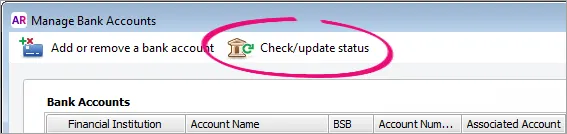
The bank feeds Log in window appears.Sign in with your MYOB account email address and password (email address must be lowercase).
The Manage Bank Accounts window reappears. This window shows all the bank feeds you have set up and their status.
In the Associated Account column, select an account from the list. This will be the account that the bank feed will be compared to. You can only select accounts set up as a bank account or credit card. Learn more about account types.
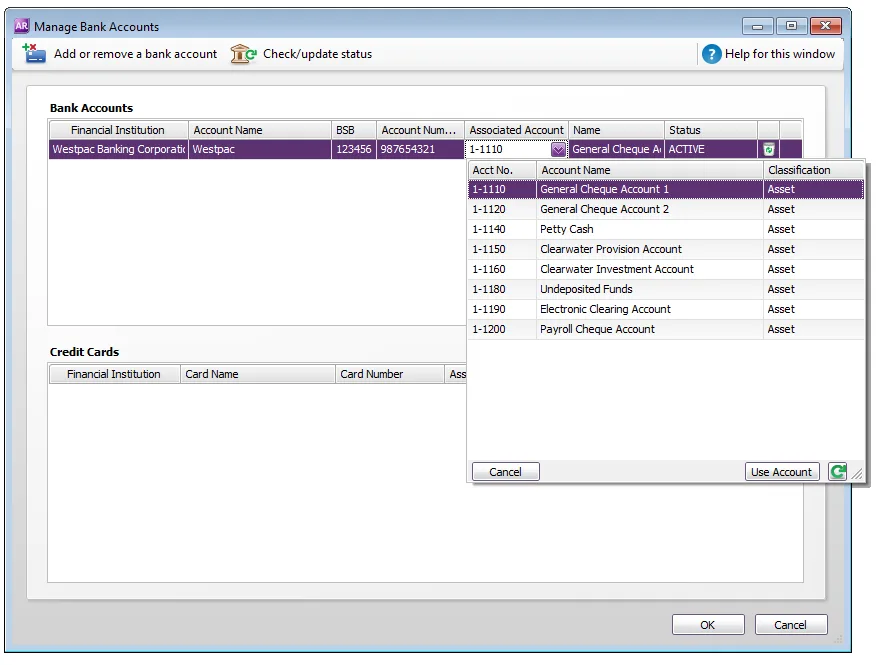
Click Use Account. The account is now linked to the bank feed.
Click OK to finish.


What happens next?
When your bank feed is ready and it's linked to an AccountRight account, you’ll be able to download and approve transactions into your company file. What's the bank feed delivery frequency?
Note that the first bank feed you receive will have transactions dated from when your bank feed was approved. Any transactions that occurred while you were waiting for the bank feed to be set up won’t be included. If you want to import and reconcile transactions dated before your feed approval date, you can import a bank statement.
FAQs
How do I set up a bank feed if my company file is offline?
Setting up and managing your bank feeds is quicker and easier if your company file is online. Plus you won't need to remember to click Get Bank Transactions in AccountRight to bring in the latest feeds from your bank – this happens automatically when your file is online.
But if your AccountRight company file is not online, you can only add new bank feeds via my.myob. As well as adding bank feeds, this is where you can:
check your bank feed application status
cancel a bank feed
You'll be prompted to sign into my.myob when you click Add or remove a bank account in the Manage Bank Accounts window in AccountRight.

In my.myob, go to the My Products page to add or manage your bank feeds.
How do I reprint an authorisation form?
If a bank feed has a Pending application status you can repeat the application process to download the authorisation form. You may need to do this if you’ve misplaced the form, or if it hasn’t been received by MYOB or your bank or financial institution.
If you're not already, sign in to MYOB Business at app.myob.com and open your business file.
Go to Banking > Banking hub.
Click Connect bank or credit card.
Choose the bank and choose the Form option.
Enter the account details and click through to download the form.
Print and sign the form, then upload it.
