To deduct child support payments from an employee's pay, you'll need to set up a deduction pay item in MYOB and assign it to the employee.
To learn more about your child support obligations, check the Services Australia website.
Let's step you through how to set up a child support deduction, then see what it looks like when you process a pay.
To set up a child support pay item
Go to the Payroll menu and choose Pay items. The Pay items page appears.
Click the Deductions tab.
Click Create deduction pay item.
Enter a Name for this pay item, such as "Child Support" or similar.
If you'd like a different, more personalised, name to show on pay slips for this deduction, enter a Name for pay slip, such as "Child Support - Steven". If you leave this blank, the pay item Name will display instead.
Choose the Linked payable category.
What's a linked payable category?
This is the category (usually a liability category) in which all the deducted money will be accrued. The Default Tax/Deductions Payable Category you specified when setting up payroll appears as the default.
You can change this default if you want to track the deduction separately. For example, if you're deducting union fees, create a Union Fees Payable liability category. This way, the balance sheet will display the deductions separately from your PAYG Withholding and other deductions.
Choose the ATO reporting category for this deduction. If you're not sure, check with your accounting advisor or the ATO. Learn about assigning ATO reporting categories for Single Touch Payroll.
Choose the Calculation basis.
User-entered amount per pay period - Select this option if you want to manually enter a specific amount for each employee each time you pay them. Note that manually entered deductions should be entered as negative values.
Equals a percentage of a pay item - This option allows you to enter a percentage of any of the wage pay items. This amount will be deducted until the deduction Limit (see below) is reached.
Select a wage pay item upon which the calculation is to be based. Alternatively, you can select Gross Wages or Federal Wages, which totals all wage pay items (hourly and salary) you pay an employee.Equals dollars per pay period - This option allows you to deduct the specified amount per pay period, per month, per year or per hour. This amount will be deducted until the Limit (see below) is reached.
Choose an applicable Limit.
No limit - signifies no limit on the amount of money that can be deducted from the employee’s pay for this category.
Equals a percentage of wages - results in the maximum deduction amount being a percentage of a wage pay item. For example, a deduction might be $50 per pay period up to a maximum of 50% of the employee’s base salary. Gross Wages and Federal Wages are also available here which total all wage pay items (hourly and salary) you pay an employee.
Equals dollars per pay period - results in the maximum deduction being a fixed dollar amount per pay period, per month or per year. For example, a deduction might be 10% of the employee’s gross wages up to $1,500 per year.
Under Allocate employees, choose the employees who require this deduction. To remove an employee, click the delete ( ) icon for that employee.
Under Exemptions, choose any taxes that shouldn't be calculated on this deduction. For example, if it's a pre-tax deduction, select PAYG Withholding. If you're not sure if the deduction should be pre- or post-tax, check with your accounting advisor or the ATO.
When you're done, click Save.
To process a pay with a child support deduction
After you've assigned a child support deduction pay item to an employee, it'll appear in their pay. Let's take a look:
Go to the Create menu and choose Pay run.
Choose the Pay cycle and confirm the pay dates.
Click Next.
Click the employee to open their pay and you'll see the child support deduction.
Continue processing the pay as normal. Need a refresher?
Amounts deducted are allocated to your payroll deductions account, ready to be paid to Services Australia. See the FAQ below for more info.
FAQs
What happens to the deducted money?
Child support deductions need to be paid to Services Australia (learn about their payment options).
You can make a record of these payments in MYOB using a spend money transaction (Banking menu > Spend money).
When recording the transaction:
In the Bank account field choose the bank account the payment is coming from.
In the Contact field choose the organisation the payment went to (you can set up a supplier for this purpose).
In the Category field choose the MYOB Payroll Deductions category.
AccountRight Plus and Premier only
The following information is of a generic nature. For more information regarding child support payments, including payment amounts and thresholds, seek advice from the Services Australia.
If child support payments need to be deducted from employee pays and forwarded to the Department of Human Services, use the following information to set up and process the payments.
1. Set up accounts and payroll categories
Create a liability account
You need to set up a liability account into which employee child support deductions will be added. This helps you keep track of the amount that needs to be paid.
Go to the Accounts command centre and click Accounts List.
Click the Liability tab.
Click New. The Account Information window appears.
For the Account Type, select Other Liability.
Specify an Account Number that suits your accounts list.
Name the account Child Support Payments.
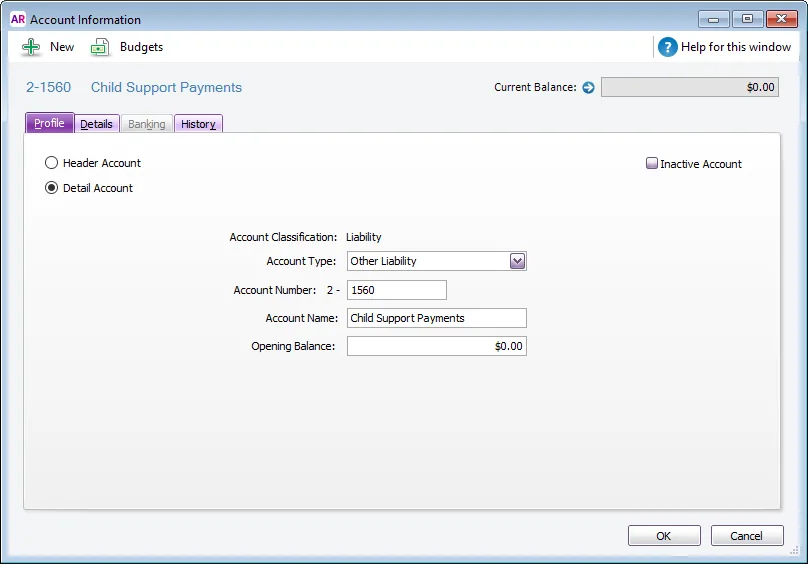
Click OK.

Create a child support deduction category
Set up a child support deduction category so you can deduct the appropriate amounts from employee pays.
Go to the Payroll command centre and click Payroll Categories.
Click the Deductions tab and click New.
Name the deduction Child Support Payment.
Select the Child Support Payment liability account as the Linked Payable Account.
Select the ATO Reporting Category for this deduction. Typically this will be Not Reportable, but you can clarify this with your accounting advisor or the ATO. Learn more about Assign ATO reporting categories for Single Touch Payroll reporting.
Select the applicable Calculation Basis:
If you have a few employees who make fixed-amount child support payments, but the amount is different for each employee, select User-Entered Amount per Pay Period. Enter the amount to deduct on each employee’s standard pay, or if the amount varies from pay to pay, you can manually enter the deduction each time you pay the employees.
If the child support deduction is based on a percentage of wages, select Equals [x] percent of [Gross Wages]. If the percentage is different for each employee, you’ll need to create separate categories for each percentage rate. If the deduction shouldn't be calculated on certain wage categories, open the wage category (Payroll Categories List window > Wages), click Exempt and select the Child Support Payments deduction.
If the child support deduction is the same fixed amount for all employees linked to this category, select Equals [x] Dollars and enter the amount to deduct each pay period, month, year or hour.
In the example below, $100 will be deducted each pay period from all employees who are linked to this category.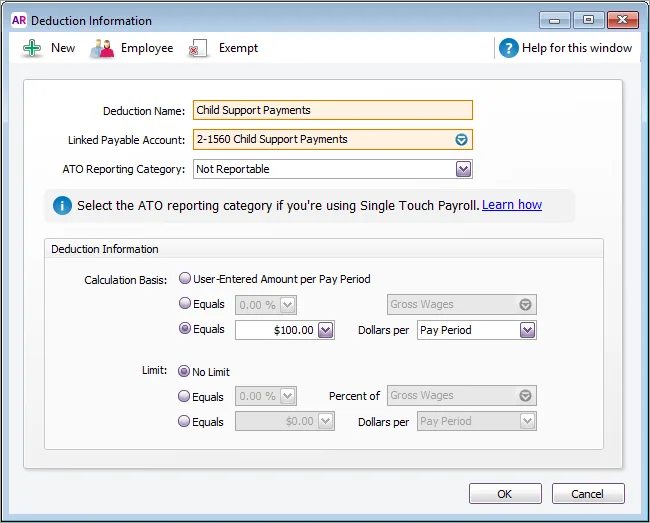
Protected Earnings
The Protected Earnings Amount (PEA) is the part of an employee’s pay exempt from child support deductions. To ensure you don't deduct too much from an employee's pay, you'll need to check the guidelines on the Services Australia website and, if required, adjust the deduction amount.
Click Employee, select the employees to whom this deduction applies, and then click OK.
If you need to withhold child support deductions before PAYG is calculated, click Exempt and select PAYG Withholding then click OK. If you're not sure if this applies in your situation, check with your accounting advisor, the Department of Human Services, or the ATO.
Click OK.

2. Process a pay with child support payments
When you process the employee's pay, the child support deduction will automatically be deducted.
However, if you selected the User-Entered Amount per Pay Period option when setting up the deduction category, and didn’t enter the amount in the employee’s standard pay, you’ll need to enter the amount to be deducted in the Amount column as a negative amount.

3. Pay the child support payments
The child support payments deducted from the employee's pay will need to be paid to the applicable party, usually the Department of Human Services. Who the payments go to and how frequently you'll need to pay will depend on the employee's circumstances. If unsure, seek advice from the Department of Human Services.
Because we set up a separate liability account for the child support payments, it's easy to pay those amounts using the Pay Liabilities feature:
Go to the Payroll command centre and click Pay Liabilities.
In the Pay from Account field, select the bank account you're making the payment from, or select Electronic Payment if you're making the payment electronically.
Bpay payments
Outgoing Bpay payments can't be processed through AccountRight. Instead, choose the AccountRight account the payment is coming from (in the Pay from Account field), complete the Pay Liabilities transaction, then manually process the payment through your internet banking software.
In the Supplier field, select the card for whoever the payments are going to, such as the Department of Human Services. If a card doesn't exist, you'll need to create one.
For the Liability Type, select Deductions.
For the Payroll Categories, select the child support deduction category. All payments deducted are listed.
In the Dated From and Dated To fields, enter the period in which the child support payments were withheld.
Select all the child support payments you want to include with this payment.
The total appears in the Total Payment field.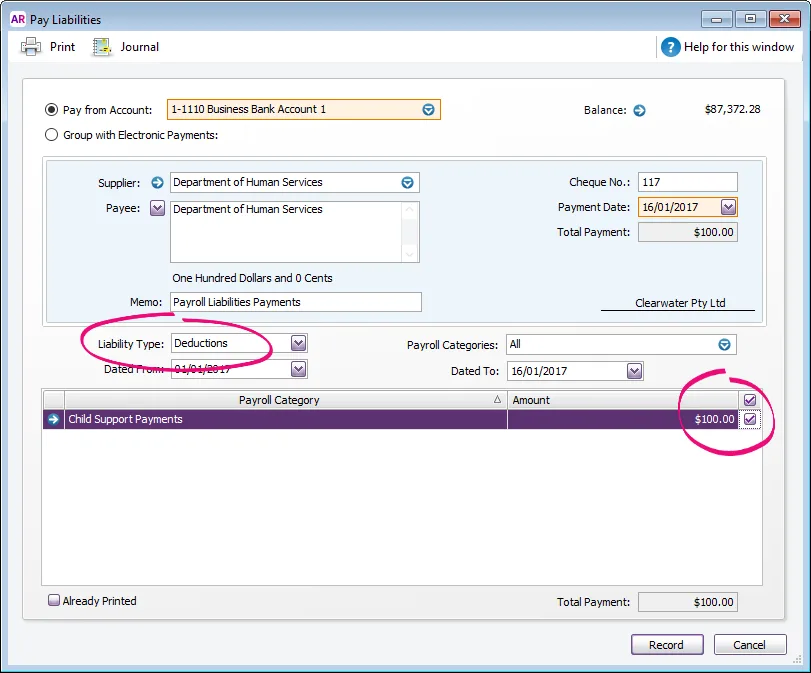
Click Record.

4. Report child support payment details
To keep track of the child support payments you have withheld, and those that you have paid:
Go to the Reports menu and choose Index to Reports.
Click the Payroll tab.
In the Payroll Liabilities group, choose:
Payroll Liabilities By Category to see the payroll liabilities that are paid or unpaid, or both.
Liabilities Payment Register to see the payroll liabilities you've paid using the Pay Liabilities function (Payroll command centre).