From 1 October 2026, changes to surcharging affect how you manage fees on invoices paid via Online Payments. More about the RBA surcharge changes
One of the many benefits of using Online Payments is that you can combine it with the automatic bank transaction matching features in MYOB Business to streamline your payment reconciliation. This help topic explains how automatic matching of online payments works and what to check if your payments aren't auto matching.
What happens when a customer pays you
When a customer makes an online payment, the fees are deducted from the payment and the balance will be settled into your nominated bank account. The payment and fees will be automatically recorded in your MYOB business, and the associated invoice will be closed off.
You'll receive an email notification about the payment, and the payee also receives an email confirming that they've paid.
How the payment is recorded in MYOB
When you set up Online Payments, you'll set a Payment category and Fee category. These are categories in your MYOB software that take care of the accounting side of the online payments you receive and any fees you pay.

When a payment is made, the required transactions are automatically recorded in MYOB using these categories. Then when the funds are settled into your actual bank account, this flows through to your MYOB business in your bank feeds and it'll be automatically matched based on the Payment category and Fee category you've specified.
This is known in MYOB Business as auto-reconciliation because it automates the entire payment process.
What transactions are automatically recorded
MYOB automates the online payment process so you don't need to do anything. But if you're interested in knowing what happens behind the scenes, here's a breakdown.
When a customer makes a payment, two transactions are automatically recorded in your MYOB business:
a customer payment transaction which closes the invoice, and
a spend money transaction for the online payment fees you've paid.
When the funds are settled into your bank account, a bank deposit transaction is automatically recorded in your MYOB business. This groups the above transactions and equals the net settlement value (the payment amount you actually receive). This bank deposit transaction will then be automatically matched to the customer's payment in your bank feed.
Let’s look at an example
Let's say you issue a customer an invoice for $100. When the customer pays the invoice, a payment transaction is recorded in your MYOB to close the invoice. Also, a spend money transaction is recorded to account for the online payment fee that you've paid.
Here's an example spend money transaction:

Bank deposit
When the net settlement value (customer payment minus fees) is deposited into your nominated bank account, a bank deposit transaction is automatically recorded to group the above two transactions together – the sum of which results in the net settlement value.
If multiple payments are made on the same day these will be grouped into a bulk deposit made up of all the customer payments on that day.
This bank deposit transaction will then be automatically matched to the customer's payment in your bank feed.
Currently, the bank deposit feature is not enabled in MYOB Business, so while you will see the transaction, you will not be able to open and view it.
When is the deposit recorded?
The bank deposit transaction is only recorded after the payment is deposited into your bank account. This will be at least 1 day after the payment is made.
What can prevent automatic matching?
If your online payments aren't being automatically matched, you'll notice that they indicate that they still need to be matched on the Bank transactions page.
While you can manually match them, we recommend using the smarts in MYOB to do all the heavy lifting.
Check the following:
Make sure the option Automatically match bank transactions to MYOB bills and invoices, is selected (go to Banking > Bank rules).
Make sure you've chosen the Payment category and Fee category to record payments and fees. Open the online payments portal and choose the categories to record payments and fees and click Save.
If you're using bank feeds, make sure the Payment category in your online invoice payment settings is the same as the bank account connected to your bank feeds. You can check this in the online payments portal.
Make sure your bank account for undeposited funds (check this via Accounting > Manage linked categories) is set up as an undeposited funds account. A default undeposited funds account is set up for you when you start using MYOB Business. It’s fine to set up and use a different account so long as it’s only being used as a clearing account for this purpose.
Make sure you don't edit the spend money transactions that get created for your online payment fees.
What amounts make up a customer's payment?
To see a breakdown of your customer's online payments, run the Transaction details report (Reporting menu > Reports > Online invoice payments tab > Transaction details).
The amount you receive might be different to the invoice amount because of the fees and charges.
One of the many benefits of using Online Payments is that you can combine it with the automatic bank transaction matching features in AccountRight to streamline your payment reconciliation. This help topic explains how automatic matching of online payments works and what to check if your payments aren't auto matching.
What happens when a customer pays you
When a customer makes an online payment, the fees are deducted from the payment and the balance will be settled into your nominated bank account. The payment and fees will be automatically recorded in your AccountRight company file, and the associated invoice will be closed off.
You'll receive an email notification about the payment, and the payee also receives an email confirming that they've paid.
How the payment is recorded in AccountRight
When you set up Online Payments, you'll set a Payment category and Fee category. These are ledger accounts in AccountRight that take care of the accounting side of your online payments and fees.
When a payment is made, the required transactions are automatically recorded in AccountRight using these accounts (categories). Then when the funds are settled into your actual bank account, this flows through to your AccountRight company file in your bank feeds and it'll be automatically matched based on the Payment category and Fee category you've specified.
This is known as auto-reconciliation because it automates the entire payment process.
What transactions are automatically recorded
AccountRight automates the online payment process so you don't need to do anything. But if you're interested in knowing what happens behind the scenes, here's a breakdown.
When a customer makes a payment, two transactions are automatically recorded in AccountRight:
a customer payment transaction which closes the invoice, and
a spend money transaction for the online payment fees you've paid.
When the funds are settled into your bank account, a bank deposit transaction is automatically recorded in AccountRight. This groups the above transactions and equals the net settlement value (the payment amount you actually receive). This bank deposit transaction will then be automatically matched to the customer's payment in your bank feed.
Multiple payments
If multiple online payments are made on the same day, these will be grouped into a bulk deposit made up of all the customer payments disbursed on that day.
Let’s look at an example
Let's say you issue a customer an invoice for $100. When the customer pays the invoice, a payment transaction is recorded in AccountRight to close the invoice. Also, a spend money transaction is recorded to account for the online payment fee that you've paid.
Here's an example spend money transaction:

Bank deposit
When the net settlement value (customer payment minus fees) is deposited into your nominated bank account, a bank deposit transaction is automatically recorded to group the above two payment transactions together – the sum of which results in the net settlement value.
If multiple payments are made on the same day these will be grouped into a bulk deposit made up of all the customer payments disbursed on that day.
This bank deposit transaction will then be automatically matched to the customer's payment in your bank feed.

When is the deposit recorded?
The bank deposit transaction is only recorded after the payment is deposited into your bank account. This will be at least 1 day after the payment is made.
What can prevent automatic matching?
If your online payments aren't being automatically matched, you'll notice that they indicate that they still need to be allocated on the Bank transactions page.
While you can manually match them, we recommend using the smarts in AccountRight to do all the heavy lifting.
Check the following:
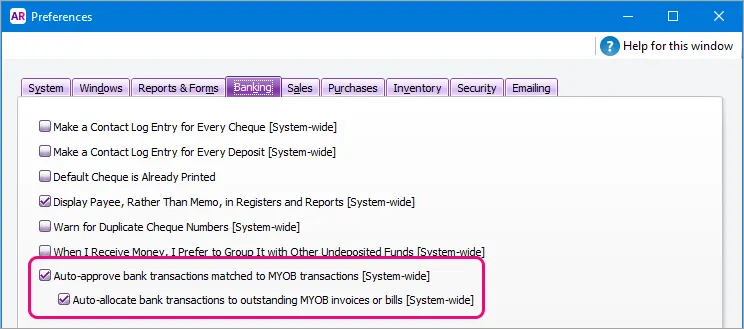
Make sure the following options are selected in AccountRight (go to the Setup menu > Preferences > Banking tab):
Auto-approve bank transactions matched to MYOB transactions
Auto-allocate bank transactions to outstanding MYOB invoices or bills
Make sure you have chosen the Payment category and Fee category to record payments and fees. Open the online payments portal and choose the categories to record payments and fees and click Save.
If you're using bank feeds, make sure the Payment category in your online payment settings is the same as the bank account connected to your bank feeds. You can check this in the online payments portal.
Make sure your bank account for undeposited funds (check this via the Setup menu > Linked Accounts > Accounts & Banking Accounts) is set up as an undeposited funds account. A default undeposited funds account is set up for you when you start using AccountRight. It’s fine to set up and use a different account so long as it’s only being used as a clearing account for this purpose.
Make sure you don't edit the spend money transactions that get created for your online payment fees.
If you've turned on the Cost Centre Tracking preference, make sure it's set to Not Required on all transactions. To check, go to the Setup menu > Preferences > System tab > if the option Turn on Cost Centre Tracking is selected, choose Not Required on All Transactions. You can keep using cost centres, but choosing one will now be optional when recording transactions.

What amounts make up a customer's payment?
To see a breakdown of your customer's online payments, run the Transaction details report (Reports menu > Index to Reports > Sales tab > Online invoice payments section > View reports > Display reports).
The amount you receive might be different to the invoice amount because of the fees and charges.