If a super payment has been returned from a super fund, you'll need to record the return and re-process the super payment.
If you use AccountRight, complete these steps in the web browser version of AccountRight.
For more details about why a contribution was returned, contact the super fund.
Check employee and fund details
If a super contribution was returned because of incorrect super fund or employee details, update these details in MYOB. You might need to check these details with the employee or their superannuation fund. Once you know what needs fixing, update the super fund or employee details.
1. Record the returned super
The returned super contribution will be deposited into the bank account it was paid from. If you use bank feeds on this category, you can categorise this deposit to your superannuation payable category.
Or you can record the payment in MYOB using a receive money transaction.
Sign in to MYOB Business at app.myob.com
Go to the Banking menu and choose Receive money.
For the Bank account, choose the account the super contribution was returned into.
Enter a Description of transaction that best describes this entry.
For the Category, choose your Superannuation Payable category.
For the Amount ($), enter the amount of returned super.
When you're done, click Record.
If the returned super contributions subsequently come into MYOB in a bank feed transaction, you can match it to this receive money transaction.
2. Record a pay to reverse the super
You now need to update the required superannuation accounts in MYOB, and send an update to the ATO for Single Touch Payroll reporting. You'll do this by recording a zero dollar pay with the adjusted super amount, so it won't affect what you've paid the employee.
Go to the Create menu and choose Pay run.
Choose the Pay cycle for the employee(s) whose super has been returned.
For the pay period dates, use the same dates as the employee's original pay. For the Date of payment, choose the date the super was returned.
Click Next.
Click the dropdown arrow for the employee whose super contribution has been returned.
Enter 0.00 for all hours and amounts in the pay. This ensures no amounts are paid and no leave is accrued.
In the Superannuation Guarantee field, enter the value of this employee's returned super as a negative number. The Net pay will be zero.
Here's our example: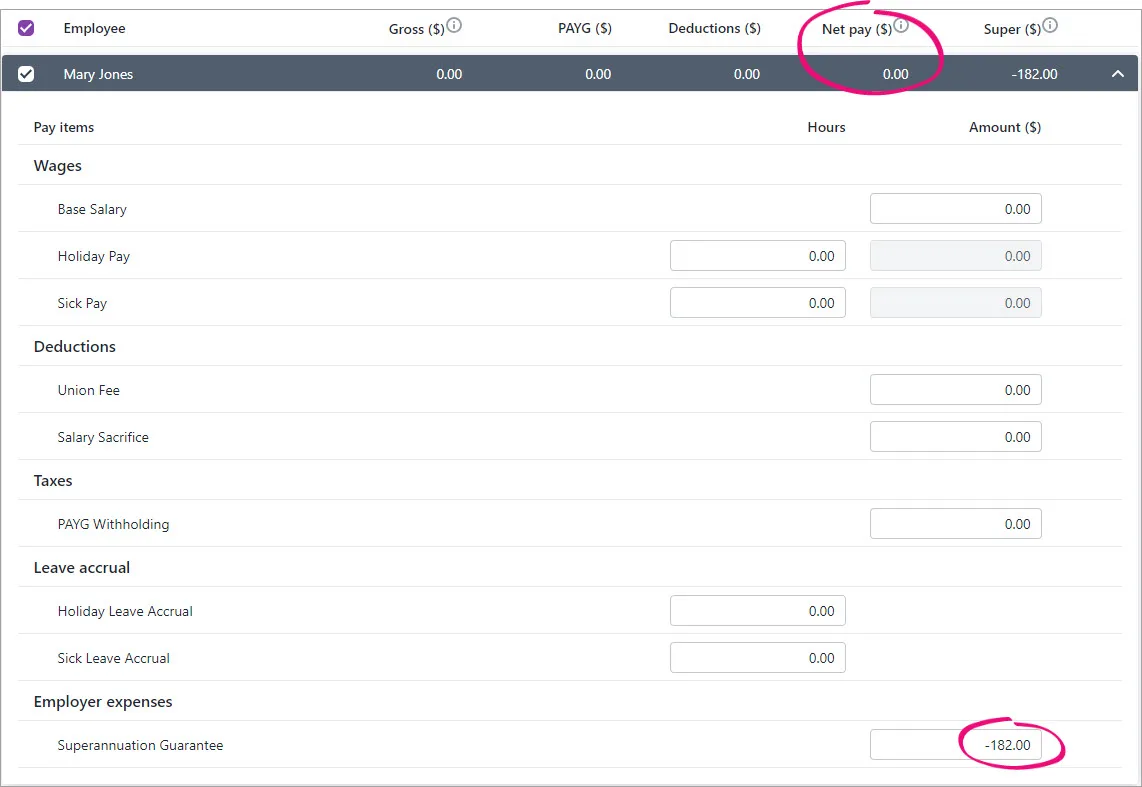
Repeat steps 5-7 for any other employees whose super contribution has been returned.
Finish processing the pays as normal, including sending the payroll information to the ATO (for Single Touch Payroll reporting). You can now reprocess the super payment as described in the next task.

Processing this pay will result in a negative super amount showing on the Super payments page when you make your super payments. You can't remove this negative amount, but you can simply change the date range to filter it out for future payments.
3. Record a pay to reprocess the super
Before reprocessing the super payment
Make sure you fix whatever caused the contribution to be returned. Check super fund and employee details.
Once you've fixed whatever caused the super contribution to be returned, you can record a zero dollar pay to reprocess the super payment. This will make the super amount available to send to the super fund, but won't affect any amounts you've paid the employee.
Go to the Create menu and choose Pay run.
Choose the Pay cycle for the employee(s) whose super has been returned.
For the pay period dates, use the same dates as the employee's original pay. For the Date of payment, choose the date the super was returned.
Click Next.
Click the dropdown arrow for the employee whose super contribution is to be reprocessed.
Enter 0.00 for all hours and amounts in the pay. This ensures no amounts are paid and no leave is accrued.
In the Superannuation Guarantee field, enter the superannuation amount to be reprocessed (as a positive number). The Net pay will be zero.
Here's our example: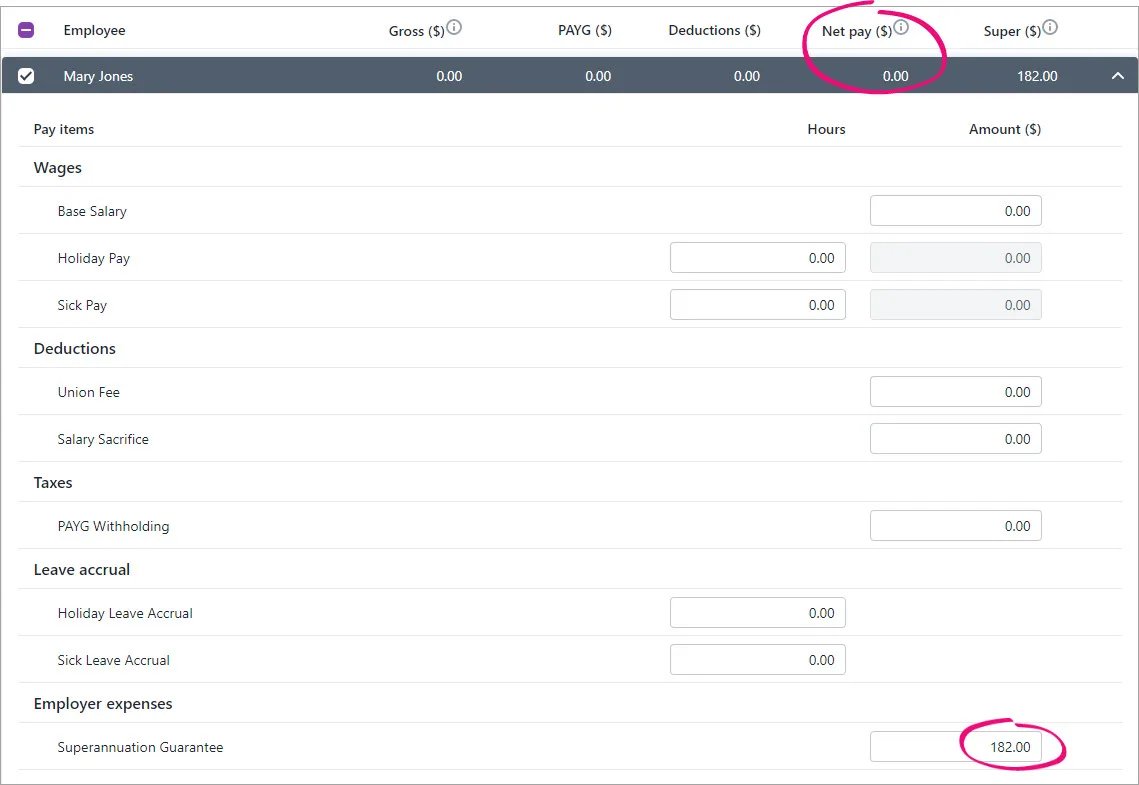
Repeat steps 5-7 for any other employees whose super contribution needs to be reprocessed.
Finish processing the pays as normal, including sending the payroll information to the ATO (for Single Touch Payroll reporting).

You can now pay and authorise the reprocessed super contribution through Pay Super (Payroll menu > Super payments). You don't need to select the pay reversal (the negative super amount) when making your super payment – only select the reprocessed payment.
FAQs
What if the returned super included salary sacrificed super?
If the returned super included a salary sacrificed amount, complete the same tasks above, but include the salary sacrifice component when recording the pays.
When recording the pay for the returned super (task 2 above):
enter the superannuation guarantee amount as a negative amount against the Superannuation Guarantee pay item
enter the salary sacrifice amount as a negative amount against the Salary Sacrifice deduction pay item, and
enter the salary sacrifice amount as a negative amount against the employees Base Salary or Base Hourly wage pay item. These amounts negate each other so the net pay stays at $0.
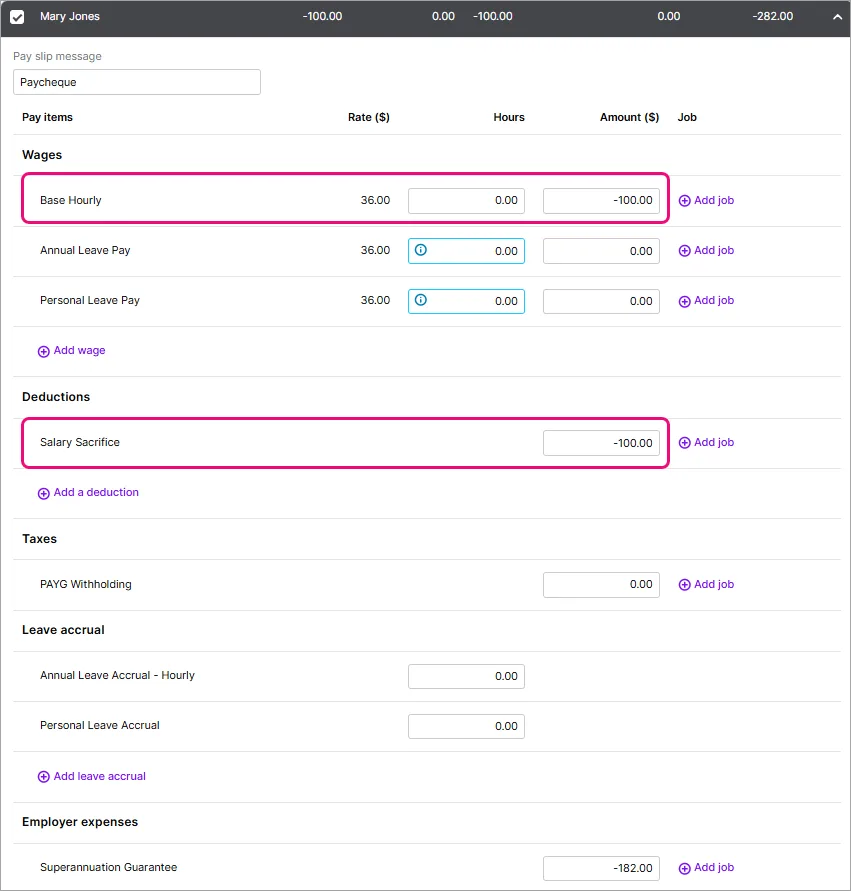
When recording the pay to reprocess the super (task 3 above):
enter the superannuation guarantee amount as a positive amount against the Superannuation Guarantee pay item
enter the salary sacrifice amount as a positive amount against the Salary Sacrifice deduction pay item, and
enter the salary sacrifice amount as a positive amount against the employees Base Salary or Base Hourly wage pay item. These amounts negate each other so the net pay stays at $0.
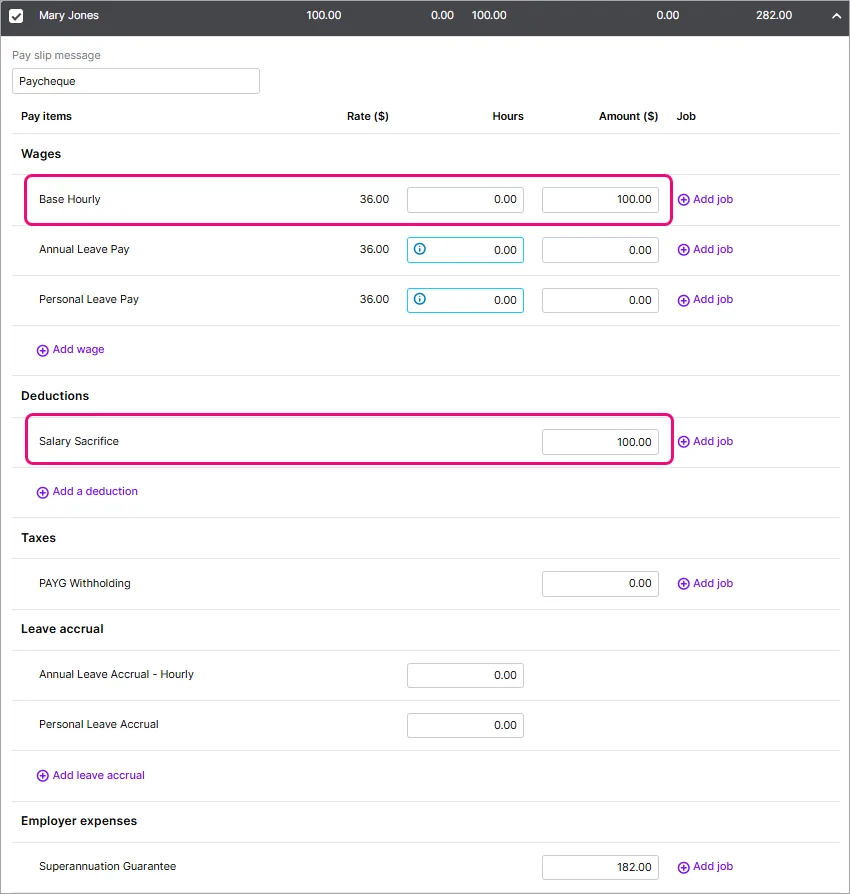


Still need help?
Contact us and we'll be happy to help.
If a super payment has been returned from a super fund, you'll need to record the return and re-process the super payment.
For more details about why a contribution was returned, contact the super fund.
Check employee and fund details
If a super contribution was returned because of incorrect super fund or employee details, update these details in MYOB. You might need to check these details with the employee or their superannuation fund. Once you know what needs fixing, update the super fund or employee details.
1. Record the returned super
The returned super contribution will be deposited into the bank account it was paid from. If you use bank feeds on this account, you can match this deposit to your superannuation payable account.
Or you can record the payment as a receive money transaction using the web browser version of AccountRight.
Sign in to your company file at app.myob.com
Go to the Banking menu and choose Receive money.
For the Bank account, choose the account the super contribution was returned into.
Enter a Description of transaction that best describes this entry.
For the Category, choose your Superannuation Payable category.
For the Amount ($), enter the amount of returned super.
When you're done, click Record.
If the returned super contributions subsequently come into MYOB in a bank feed transaction, you can match it to this receive money transaction.
2. Record a pay to reverse the super
You now need to update the required superannuation accounts in MYOB, and send an update to the ATO for Single Touch Payroll reporting. You'll do this by recording a zero dollar pay with the adjusted super amount, so it won't affect what you've paid the employee.
You'll complete this task using AccountRight in a web browser.
If you haven't already, sign in to your company file at app.myob.com
Go to the Create menu and choose Pay run.
Choose the Pay cycle for the employee(s) whose super has been returned.
For the pay period dates, use the same dates as the employee's original pay. For the Date of payment, choose the date the super was returned.
Click Next.
Click the dropdown arrow for the employee whose super contribution has been returned.
Enter 0.00 for all hours and amounts in the pay. This ensures no amounts are paid and no leave is accrued.
In the Superannuation Guarantee field, enter the value of this employee's returned super as a negative number. The Net pay will be zero.
Here's our example:Repeat steps 5-7 for any other employees whose super contribution has been returned.
Finish processing the pays as normal, including sending the payroll information to the ATO (for Single Touch Payroll reporting). You can now reprocess the super payment as described in the next task.
Processing this pay will result in a negative super amount showing on the Super payments page when you make your super payments. You can't remove this negative amount, but you can simply change the date range to filter it out for future payments.
3. Record a pay to reprocess the super
Before reprocessing the super payment
Make sure you fix whatever caused the contribution to be returned. Check super fund and employee details.
Once you have fixed whatever caused the super contribution to be returned, you can record a zero dollar pay to reprocess the super payment. This will make the super amount available to send to the super fund, but won't affect any amounts you've paid the employee.
You'll complete this task using AccountRight in a web browser.
If you haven't already, sign in to your company file at app.myob.com
Go to the Create menu and choose Pay run.
Choose the Pay cycle for the employee(s) whose super has been returned.
For the pay period dates, use the same dates as the employee's original pay. For the Date of payment, choose the date the super was returned.
Click Next.
Click the dropdown arrow for the employee whose super contribution is to be reprocessed.
Enter 0.00 for all hours and amounts in the pay. This ensures no amounts are paid and no leave is accrued.
In the Superannuation Guarantee field, enter the superannuation amount to be reprocessed (as a positive number). The Net pay will be zero.
Here's our example:Repeat steps 5-7 for any other employees whose super contribution needs to be reprocessed.
Finish processing the pays as normal, including sending the payroll information to the ATO (for Single Touch Payroll reporting).
You can now pay and authorise the reprocessed super contribution through Pay Super (Payroll command centre > Pay Superannuation). You don't need to select the pay reversal (the negative super amount) when making your super payment – only select the reprocessed payment.
FAQs
What if the returned super included salary sacrificed super?
If the returned super included a salary sacrificed amount, complete the same tasks above, but include the salary sacrifice component when recording the pays.
When recording the pay for the returned super (task 2 above):
enter the superannuation guarantee amount as a negative amount against the Superannuation Guarantee pay item
enter the salary sacrifice amount as a negative amount against the Salary Sacrifice deduction pay item, and
enter the salary sacrifice amount as a negative amount against the employees Base Salary or Base Hourly wage pay item. These amounts negate each other so the net pay stays at $0.
When recording the pay to reprocess the super (task 3 above):
enter the superannuation guarantee amount as a positive amount against the Superannuation Guarantee pay item
enter the salary sacrifice amount as a positive amount against the Salary Sacrifice deduction pay item, and
enter the salary sacrifice amount as a positive amount against the employees Base Salary or Base Hourly wage pay item. These amounts negate each other so the net pay stays at $0.
Still need help?
Contact us and we'll be happy to help.